
A normal update doesn't need a full uninstall. Spooky2's help center says to install the new Full Installer over the old version.
Before you start: you don't need a full uninstall to update Spooky2
So if you only want the newest version of Spooky2, you can install the new Full Installer over the old one. The update keeps your User folder, which is where your own presets live.
A full uninstall is for starting clean. For example, Spooky2 won't open properly, or Spooky2 stops finding the GX Pro even though the GX Pro is plugged in and turned on. A full uninstall also clears out every driver Spooky2 put on the laptop, so you can install them fresh.
Parts 1 to 4 below take you from backing up your own files to a clean restart. The times are from one Windows 11 laptop with our GeneratorX Pro, so a slower laptop could take a little longer.
How long it takes
| Part | Time on our laptop |
|---|---|
| Part 1: Back up C:\Spooky2 | about 2 minutes |
| Part 2: Uninstall Spooky2 | about 2 minutes |
| Part 3: Remove the ports and drivers | about 3 minutes |
| Part 4: Unplug and restart | about 2 minutes |
| All four parts | about 15 minutes, counting the time we spent checking each screen |
Part 1
Back up your own files first
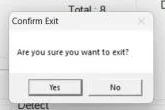
- Close Spooky2. Click the X at the top right of Spooky2, then click Yes when Spooky2 asks if you want to exit.
- Copy the whole C:\Spooky2 folder. In File Explorer, open This PC, then Local Disk (C:). Right-click the Spooky2 folder and choose Copy.
- Paste the copy and rename it. Right-click an empty spot in the same Local Disk (C:) window and choose Paste. Then right-click the new copy, choose Rename, and call it Spooky2-backup. Our backup was 39,983 files and 420.8 MB, so give File Explorer a minute or two to copy it.
- Check the backup has the two folders that hold your own work.
- Preset Collections\User holds the presets you saved yourself. Ours had one, "Lance Daily Support (R)". Our guide to saving your own preset shows how presets end up there.
- ScanData holds your biofeedback scan results.

Everything else in the C:\Spooky2 folder comes back with a fresh install. Your own presets live in the User folder, which is why that's the one to keep (Spooky2 help center).
Part 2
Uninstall the Spooky2 software
- Click the Start button, then Settings, then Apps, then Installed apps. Type spooky in the search box at the top.
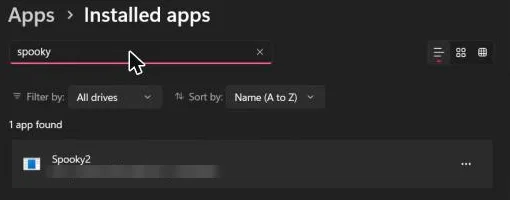
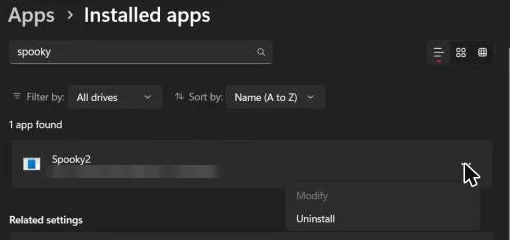
- Click the three dots at the right of the Spooky2 line, then Uninstall, then Uninstall again in the small box that pops up.
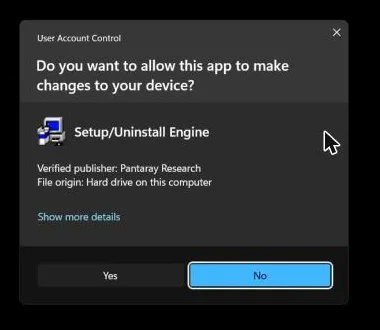
- Windows asks for permission. The permission box names the uninstaller, Setup/Uninstall Engine, and its publisher, Pantaray Research. Basically, Pantaray Research makes the setup program Spooky2 uses, so seeing that name instead of Spooky2's is normal.
Click Yes. Then the uninstaller asks if you're sure you want to uninstall Spooky2, so click Yes again.
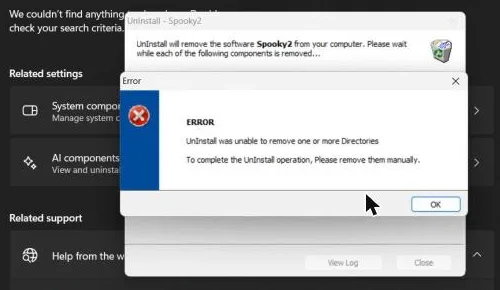
- An Error box says "UnInstall was unable to remove one or more Directories." The uninstaller leaves your own presets and scans behind on purpose, so this error is normal. Click OK.
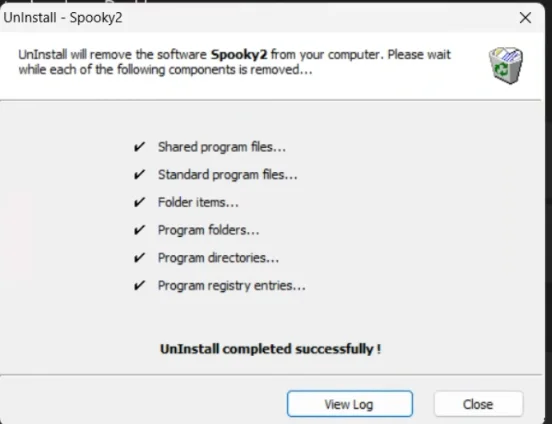
The next box says "UnInstall completed successfully!" Click Close.
- Rename or delete the leftover Spooky2 folder. In File Explorer, open This PC, then Local Disk (C:). You'll still see a Spooky2 folder, holding the Audio, Data, Preset Collections, ScanData and sumatrapdfcache folders.
Right-click that Spooky2 folder and choose Rename or Delete, so the new install starts empty. We renamed ours Spooky2-leftover. You already have your own files in the backup from Part 1.
Part 3
Remove the generator's ports and Spooky2's drivers
- Make sure the GX Pro is plugged in and turned on, with its USB cable connected to the laptop. Device Manager only shows the GX Pro's ports while the GX Pro is connected.
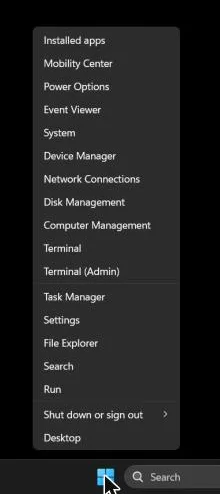
- Right-click the Start button and choose Device Manager.
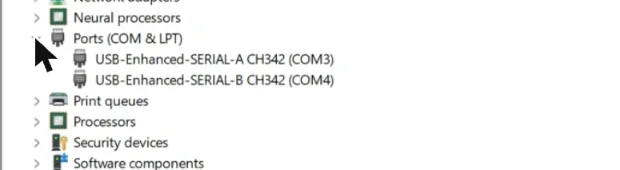
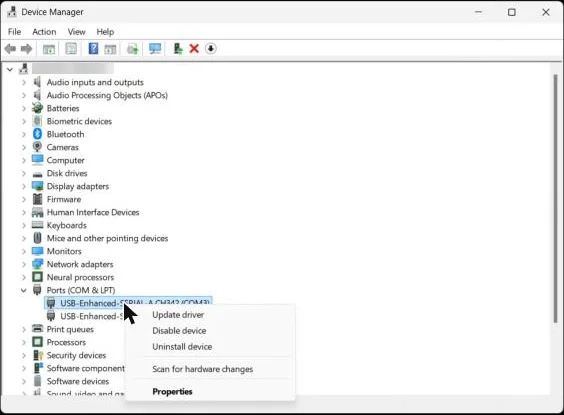
- Click the arrow beside Ports (COM & LPT). Our GX Pro showed two lines, USB-Enhanced-SERIAL-A CH342 (COM3) and USB-Enhanced-SERIAL-B CH342 (COM4). Your COM numbers could be different.
There are two lines because the GX Pro is two generators in one box. Spooky2 goes by these port numbers, so Spooky2 named our two generators 3 and 4 instead of 1 and 2.
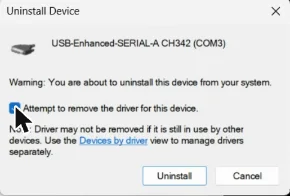
- Right-click the first CH342 port and choose Uninstall device. Tick "Attempt to remove the driver for this device," then click Uninstall.
- Right-click the second CH342 port and choose Uninstall device, then click Uninstall.
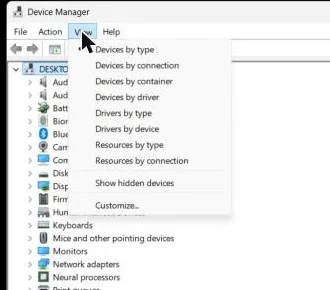
- Click the View menu, then Drivers by type. Basically, a driver package is the set of files Windows uses to talk to a device. The Drivers by type view lists every driver package on the laptop, including the ones for devices that aren't plugged in right now.
- Remove each of Spooky2's four driver packages. Right-click each one below and choose Remove driver, then click Remove in the box that opens. The "oem" number in front of each name is different on every laptop, so go by the name in brackets.
- slabvcp.inf is under Ports. That's the CP210x driver, for Spooky2's older XM generator.
- ch341ser.inf is under Ports, and it's the CH341 driver.
- ftdiport.inf is under Ports, and it's one of the two FTDI drivers.
- ftdibus.inf is under Universal Serial Bus controllers, and it's the other FTDI driver.

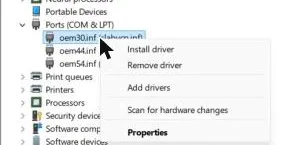
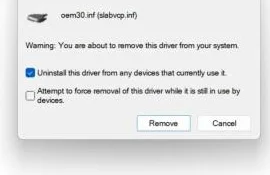
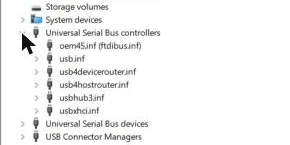
Leave Windows' own usb drivers alone, like usb.inf and usbxhci.inf. The CH343 driver, which runs the GX Pro's CH342 ports, was already removed when you uninstalled the two ports in steps 13 and 14.
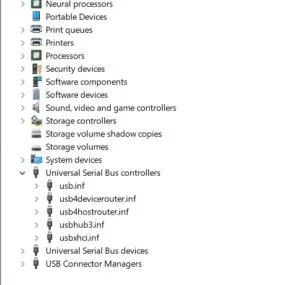
- Optional check: open Settings, then Apps, and search for "driver." Ours showed only the laptop's camera driver and a Silicon Labs package from March 2025, which didn't come from this Spooky2 install. So we left both alone. Only remove something there if you're sure it came from Spooky2.
Part 4
Unplug and restart
- Unplug the GX Pro's USB cable from the laptop. You can leave the GX Pro's power adapter plugged in.
- Restart Windows. Click the Start button, then the Power button, then Restart, and sign in again.
Something to note is what happened after our restart. LG's update tool offered two optional apps, "LG Smart Assistant" and "LG Security Guard." Those are the laptop maker's own apps, not Windows security, and Spooky2 doesn't need them, so we skipped them. Other laptops could show similar offers from their own makers.
So ultimately, the step that's easy to miss is the Drivers by type view in Device Manager, because uninstalling Spooky2 from Settings leaves the drivers behind. With that, the whole uninstall is about 15 minutes. And when you're ready to put Spooky2 back, our step-by-step install guide shows every screen, including how to put your own presets and scans back from the backup.
Sources
- Spooky2 help center, "When a new version of Spooky2 software comes out, Should you uninstall the old version": install the new version over the old one, and the update keeps your User folder.
- Spooky2 help center, "Can I download and reinstall the new software without losing all my history and past scans?" and "Is there a way to save personal presets when the software has to be reinstalled?": your own presets live in the User folder.
- Spooky2 Quick Guide (July 2026), page 14, on the Spooky2 downloads page: the Full Installer "will overwrite the previous version automatically."
- Spooky2 store page for the GeneratorX Pro.
- Our own uninstall on October 23, 2026, of Spooky2 version 20260911 on a Windows 11 laptop: the steps, times and screenshots on this page.
My take
Back up before anything else. Your own presets and scans are the only things a fresh install can't give you back.
Don't stop at Settings. Uninstalling Spooky2 from Settings leaves its drivers behind, and Device Manager is where they come off.
And if you have any questions, feel free to email me at contact@biofrequencybuddy.com. I look forward to reading as many messages as I can, and your questions help me improve these guides.