
Before you start
So once you've built a set of programs in Spooky2, you can save that set as your own preset. Basically, a preset is a file Spooky2 keeps in its User folder, so next time you can load the whole set in one click instead of adding each program again. I'll use my daily liver, kidney and lymph support set as the example the whole way through. That set is Liver Function Balance, Kidney Function Normalize Stimulate and Lymph System Circulation Stimulate in the Healing (R) - JW shell, at 2.5 V with Repeat Chain 1, and it runs 27 minutes.
Parts 1 to 5 below show every click. Part 1 is what to set up before you save, Part 2 saves your set as a preset, Part 3 loads your preset next time, Part 4 checks the voltage and Repeat Chain after loading, and Part 5 shows how to change or delete a saved preset.
I used Spooky2 version 20260911 on a GeneratorX Pro, or GX Pro, which is $650 on Spooky2's store.
Part 1
Build the set and set it up first
Do Part 1 before you save, so your programs are in the right order and the voltage and Repeat Chain are set when you click save.
- Load a shell and add your programs. For Remote mode, that's the empty Healing (R) - JW shell, which is on the Presets tab in the Shell (Empty) Presets folder, then the Remote folder. Then add your programs on the Programs tab, and check their order and Estimated Total Run Time. Parts 2 to 5 of my daily support set guide show every click for my example.
- Set Repeat Chain. It's on the Programs tab, in the Options section, on the fourth line. Basically, Repeat Chain 1 makes the set stop after one pass instead of starting over. For my set, Repeat Chain is 1.
- Set the voltage. It's on the Settings tab, at the top left, in the Amplitude row. For my set, Out 1 and Out 2 are both 2.5.
Part 2
Save the set as your own preset
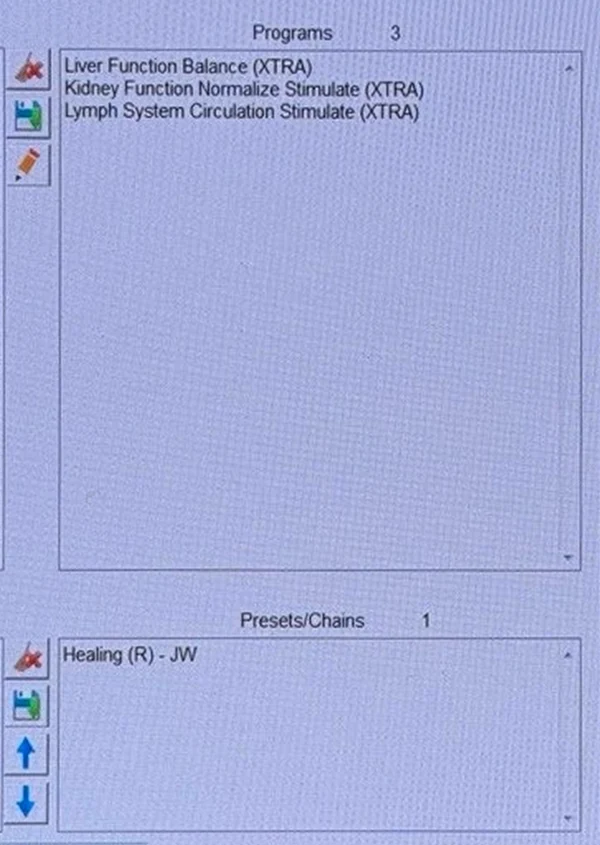
- Click the Presets tab. With my set loaded, the Programs box lists Liver Function Balance (XTRA), Kidney Function Normalize Stimulate (XTRA) and Lymph System Circulation Stimulate (XTRA), and Estimated Total Run Time reads 00:27:00.
- Find the small column of three icons between the preset list on the left and the Programs box in the middle. There's a red X at the top, a green floppy disk in the middle, and a pencil at the bottom. Click the green floppy disk.
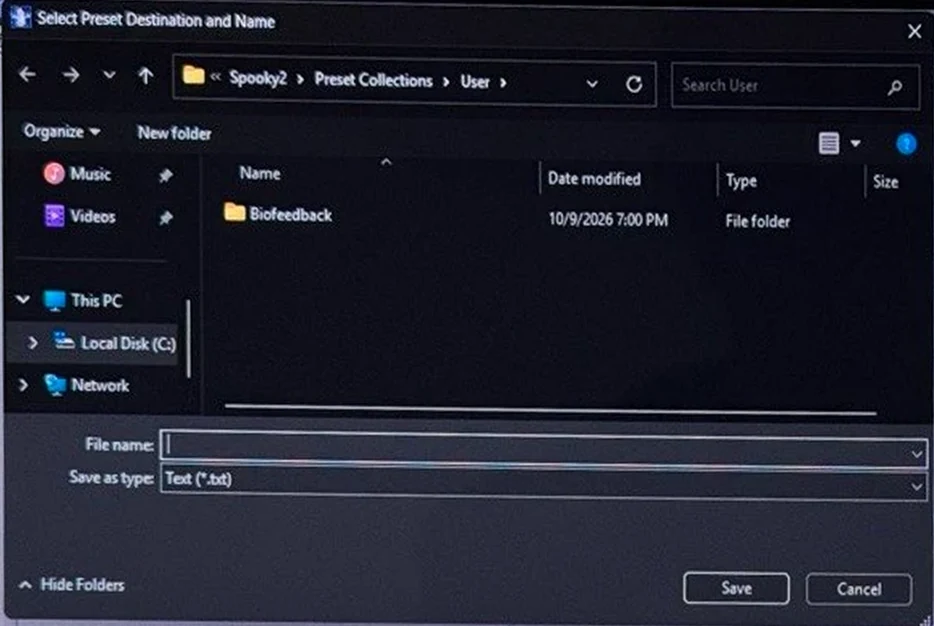
- A Windows save window opens, titled Select Preset Destination and Name. It already opens in Spooky2 > Preset Collections > User. Leave it in that folder.
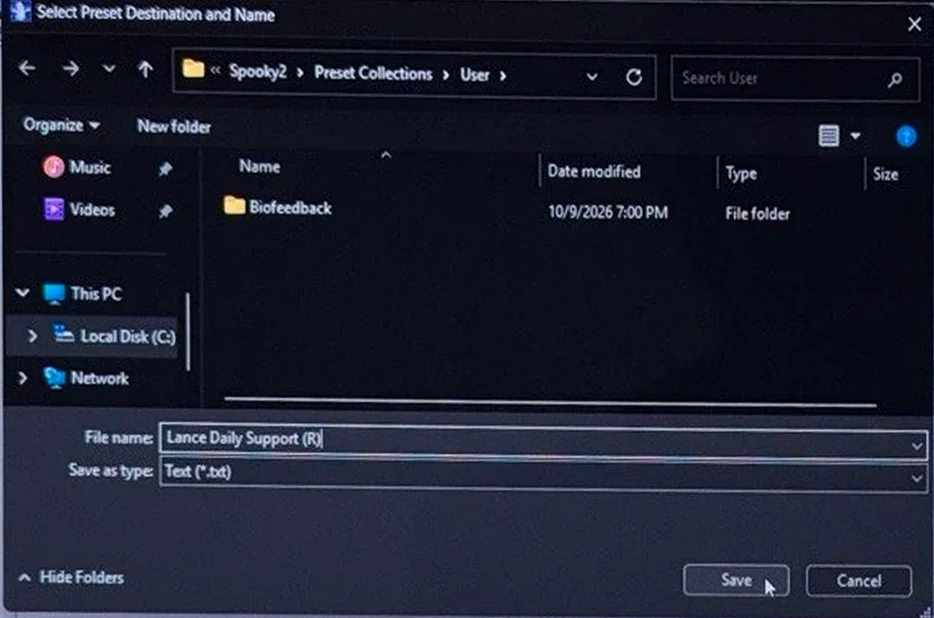
- Click in File name and type a name for your preset. Ending the name of a Remote preset with (R) makes it easy to recognize later, the same way Spooky2 names its own Remote presets. I named mine Lance Daily Support (R). Leave Save as type as Text (*.txt).
- Click Save.
Part 3
Load your preset next time
- Click the Presets tab, then click the house icon under the search box. The list of top folders appears, and >User is at the bottom.
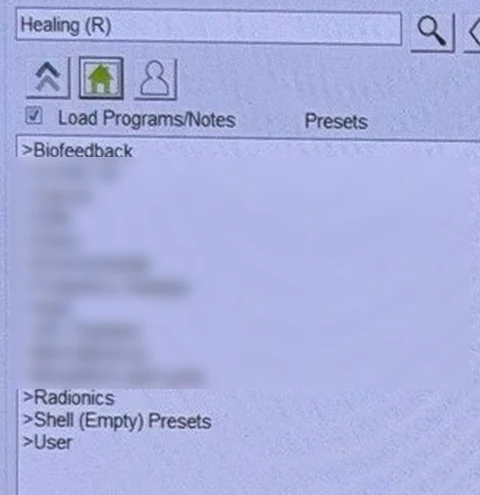
- Double-click >User. Your preset is listed there.
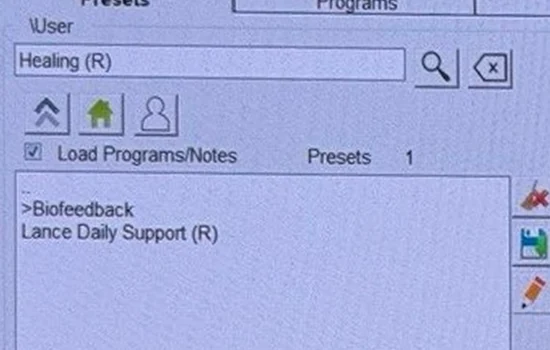
- Click your preset. The line above the search box shows the preset's path, which for mine is C:\Spooky2\Preset Collections\User\Lance Daily Support (R). The Programs box lists your programs, and Estimated Total Run Time shows your set's run time, which is 00:27:00 for mine.

- Click the Control tab. Tick Overwrite Generator, click your generator's box, and click Start. Start is the top button, and Scan is right below it.
- Check Generator Output. It should show the first frequency of your set, which is 33.13 for mine, and your amplitude, which is 2.5v for mine.
Part 4
Check the voltage and Repeat Chain after loading
- Each time you load your preset, check the voltage and Repeat Chain before you leave your set running. On the Control tab, Generator Output should show your amplitude, which is 2.5v for mine, not 10v. And on the Programs tab, Repeat Chain should read 1.
If Generator Output shows 10v, click Stop, set Out 1 and Out 2 back to your voltage on the Settings tab, and press Tab after each one. If your set starts over after one pass, which would be after 27 minutes for mine, click Stop and set Repeat Chain back to 1. Then save the preset again under the same name, the way Part 5 shows, and check the voltage and Repeat Chain again the next time you load your preset.
Part 5
Change or delete a saved preset
- To change a saved preset, load your preset, change the programs, the voltage or Repeat Chain, and click the green floppy disk again. Pick the same name in the save window, and confirm that you want to replace it.
- To delete a saved preset, look in C:\Spooky2\Preset Collections\User on your laptop. Each saved preset is a plain text file there, and you can delete your own. Just be careful to delete only the presets you saved yourself, and leave everything else in that folder alone.
So ultimately, to save your set, you click the green floppy disk on the Presets tab, type a name in the User folder, and click Save. And to load your set next time, you click the house icon, double-click >User, and click your preset. And hopefully this saves you from building your set from scratch every day.
Sources
- Spooky2 help center, "How do you create a personal folder?": the Save preset button is the floppy disk icon on the Presets tab.
- Spooky2 help center, "How do I delete programs I have saved to my database?": saved files in Preset Collections\User can be deleted there, without deleting anything Spooky2 put in.
- Spooky2 store page for the GeneratorX Pro.
- Spooky2 software, version 20260911, available on the Spooky2 downloads page: the steps and screenshots on this page.
My take
Use the top floppy disk. The one lower down, beside Presets to Chain, saves chains.
Check the voltage and Repeat Chain every time you load your preset. If you have any questions, feel free to email me at contact@biofrequencybuddy.com. I look forward to reading as many messages as I can, and your questions help me improve these guides.