
How long the install takes: installing Spooky2 and its drivers took about 35 to 40 minutes on our laptop when nothing got stuck. And about 25 minutes of that is just the software copying files on its own, so you can step away while it runs.
Before you start: what's in the box, and what you'll use
So this page walks you through the whole GX Pro Essential Kit setup in order, from opening the box to your first program running on a Remote. And you won't need any other page.
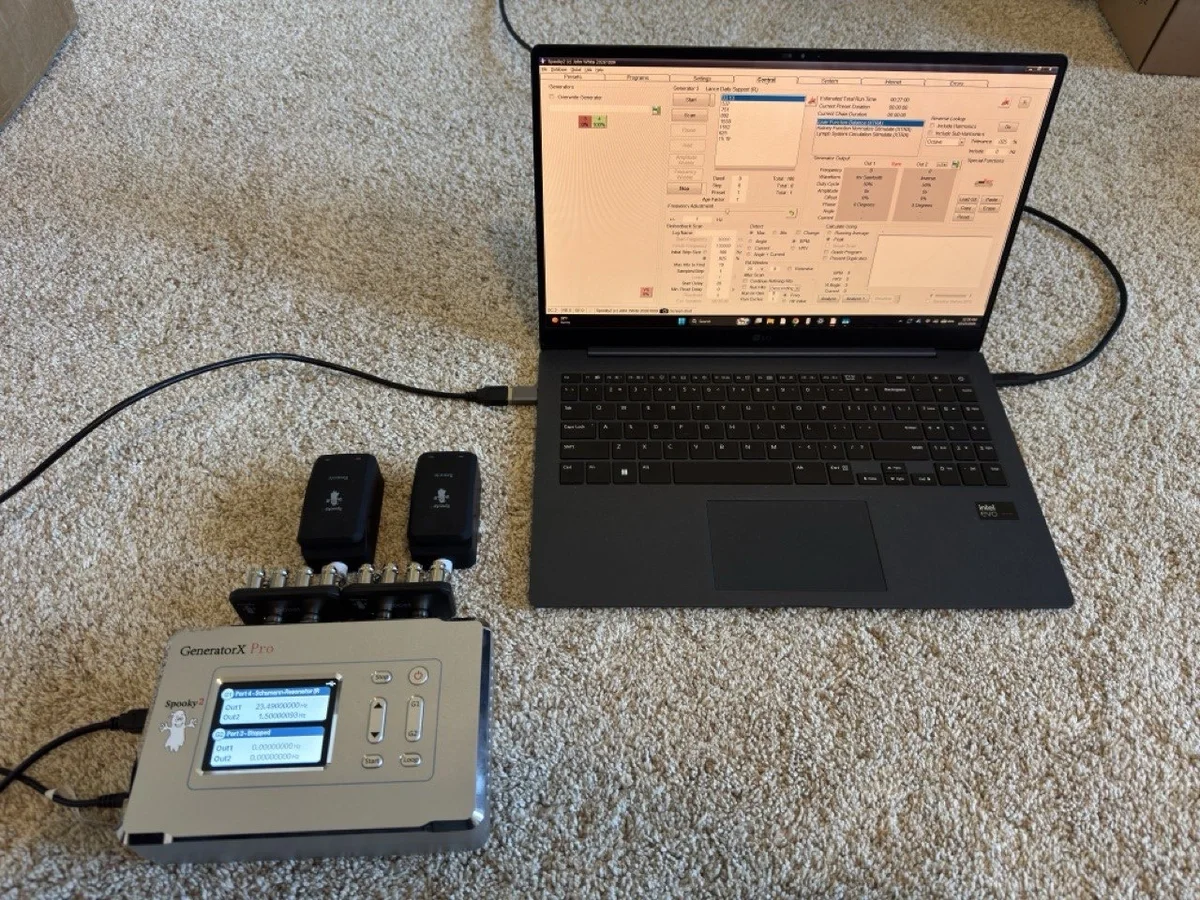
Here's what Spooky2 puts in the GX Pro Essential Kit:
- 1 GeneratorX Pro (GX Pro) with its 12V power adapter and a USB cable
- 2 Spooky2 Boosts (v3.1)
- 2 Spooky2 Remotes (v2.0)
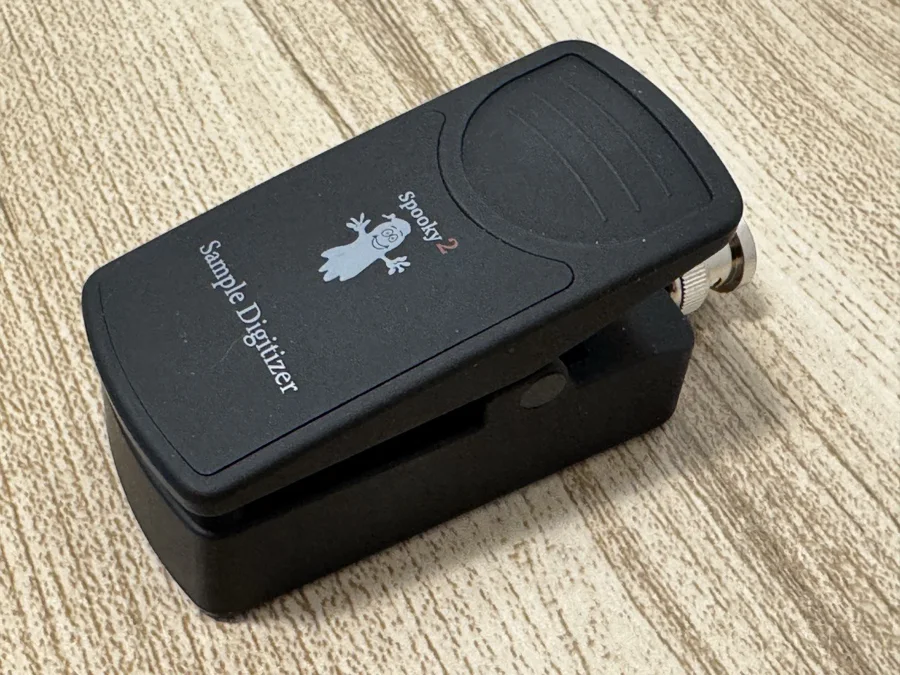
- 1 Sample Digitizer and 5 pairs of replacement slides
- TENS pads, a TENS cable, stainless hand cylinders, a PEMF coil, a Cold Laser Twin and a Cold Laser Wrist
Now to get started, you only need the GX Pro, its power adapter, its USB cable, one Boost, one Remote, and the small stickers for your sample. So you can leave everything else in the box for now. You'll also need a Windows laptop.
How long it takes
So on our laptop, on home Wi-Fi, installing Spooky2 and its drivers took about 35 to 40 minutes when nothing got stuck. And about 25 minutes of that is just the software copying files on its own. So you can step away while it runs if you like.
| Step | Time on our laptop |
|---|---|
| Download the installer (223 MB) | about 1 minute |
| The two Windows warnings | under 1 minute |
| Extracting files | about 1.5 minutes |
| Language, license and destination | about 2 minutes |
| Copying files | about 25 minutes |
| The four driver installers | a few minutes when nothing gets stuck |
| Plug in and check Device Manager | under 1 minute |
| First start of Spooky2 | about 1 minute |
| Load and start the Schumann Resonator | under 1 minute |
Part 1
Get the laptop ready
So Spooky2 only runs on Windows. And Spooky2 recommends a laptop with an Intel processor rather than AMD, used only for Spooky2. Now the reason for that is because the laptop will run Spooky2 day and night.
- Check whether Windows is in S mode. Basically, S mode is a version of Windows that only runs apps from the Microsoft Store, so the Spooky2 installer won't run in it. Now only some laptops come with S mode turned on when you buy them. So if yours isn't in S mode, you can just skip ahead to step 2. To check, open Settings, then System, then About, and look at the Edition line under Windows specifications. If it says "in S mode," like "Windows 11 Home in S mode," you'll want to switch out of it using Microsoft's "Switch out of S mode" page. And switching out is free. Just keep in mind that once you switch out of S mode, you can't switch back into it, which is fine for a laptop used for Spooky2.
- Stop the laptop from sleeping. So go to Settings, then System, then Power & battery (on some laptops it's called Power & sleep). Then set Screen and Sleep to Never, both on battery and plugged in. Now the reason you want to do this is because if the laptop sleeps, Spooky2 loses control of the generator and the generator gets stuck on one frequency.
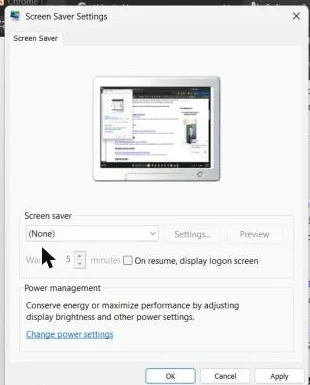
- Turn the screensaver off. So the Spooky2 install has a file copy of about 25 minutes. And on our laptop the screensaver came on during the copy, and then the lock screen did too. Nothing was wrong with the install, but it's just easier with the screen on. So type screen saver in the Start menu search, click Change screen saver, choose (None) and click OK.
- Keep the laptop's own charger plugged in the whole time. And it's normal for the laptop's charger to be a USB-C cable.
Part 2
Download the Spooky2 installer
- On the laptop, go to the Spooky2 downloads page. Under Software, click "Click Here to Download Spooky2 9th October 2026 Full Installer." And keep in mind, the date in the name changes with each version.
- Save the file. Ours was Spooky2_Setup_20261009.exe, 223 MB, and it took about 1 minute to download.

Now the same page also has a Starter Pack link near the top. Basically, the Starter Pack is a bigger zip file that also has Spooky2's guides in it, and either one works. But the Full Installer is simpler, because it's one file you run directly, with no zip to extract.
And the downloads page recommends turning off your antivirus while you install. We left Microsoft Defender, Windows' built-in protection, turned on, and the install worked.
Part 3
The two Windows warnings, and both are normal
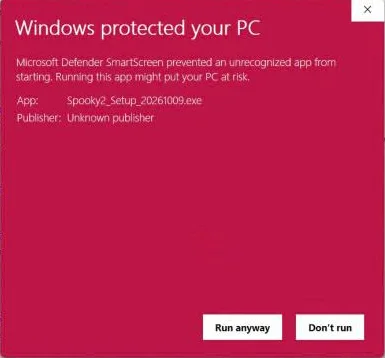
- Run the file you downloaded. So a box will pop up that says "Windows protected your PC." Now that's Microsoft Defender SmartScreen, and it shows up because Windows doesn't recognize Spooky2's installer yet. You'll want to click More info, and the box will then show the installer's name along with "Publisher: Unknown publisher." And once you see that, go ahead and click Run anyway.
- Windows asks a second time. This time it's User Account Control, and it asks, "Do you want to allow this app from an unknown publisher to make changes to your device?" So when you see that one, just go ahead and click Yes.
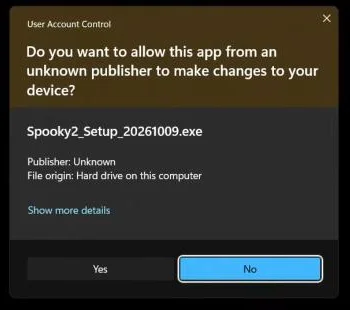
Now Spooky2's installer isn't signed with a paid certificate, so Windows can't name the publisher here. But keep in mind, it's still the same file you downloaded from Spooky2's own downloads page.
Part 4
Run the installer
- "QSetup Installation Suite: Extracting Files" comes up first. It took about 1.5 minutes.
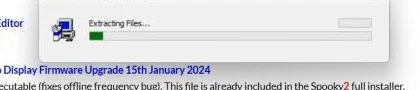
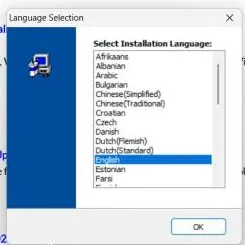
- Language Selection: English is already chosen, so you can just click OK. Then on the Welcome screen, click Next.
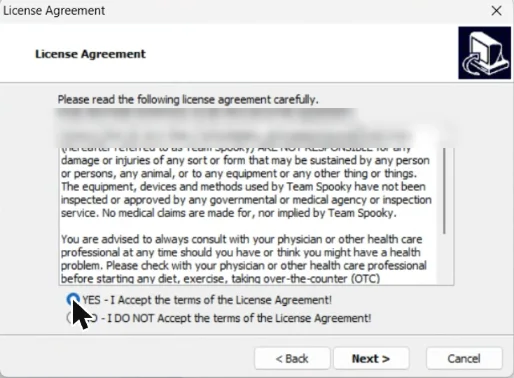
- License Agreement: so Spooky2's license says Team Spooky isn't responsible for how you use Spooky2, and that no medical claims are made. It also says to check with your physician or another health care professional. Select YES and click Next.
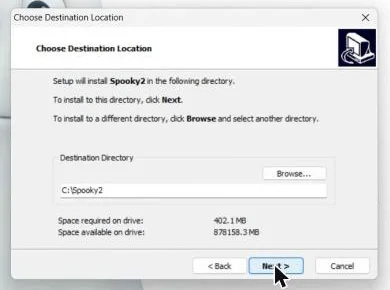
- Choose Destination Location: leave it as C:\Spooky2 and click Next. Spooky2 needs about 402 MB. Now the reason you want to keep the default is because Spooky2's help articles and our other guides all assume C:\Spooky2.
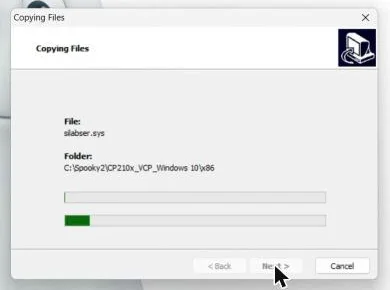
- Copying Files: this is the long part. Basically, Spooky2 copies about 40,000 small preset files, and it took about 25 minutes on our laptop. And keep in mind the progress bar looks stuck at times, but it isn't.
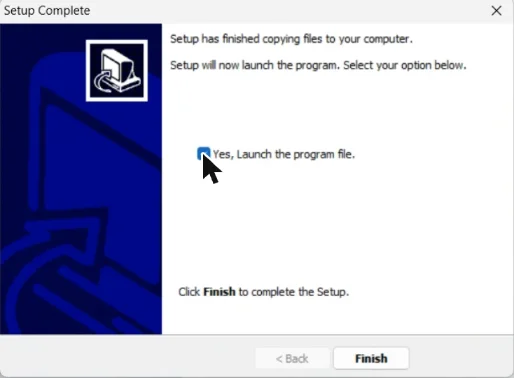
- Setup Complete: tick "Yes, Launch the program file" and click Finish.
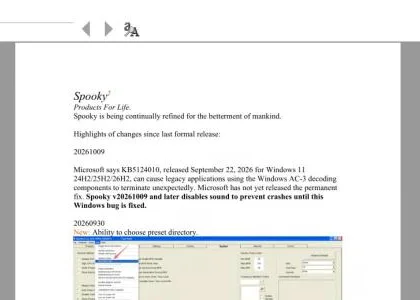
- A PDF opens first, not Spooky2. It's called Spooky2_Changes.pdf, and it's 21 pages of notes on what changed in each version. You can close it, and Spooky2 starts after that.
Part 5
Install the drivers
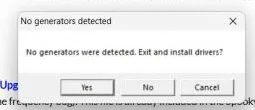
- Spooky2 says "No generators were detected. Exit and install drivers?" And that's expected, because the GX Pro isn't plugged in yet. So click Yes. Spooky2 closes, and the driver windows open.
- Four driver installers open at the same time, stacked on top of each other. You'll want to do them one at a time. Basically, each driver is for a different kind of USB chip, and different Spooky2 generators use different chips. Now Spooky2's guide names the FTDI driver for the GX Pro, but our GX Pro uses the CH343 driver. So installing all four covers whichever chip yours has.
CH343SER, the driver our GX Pro uses
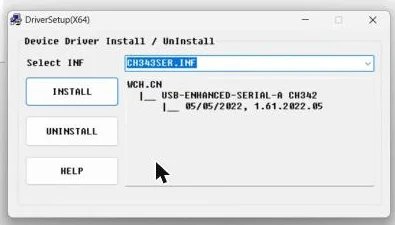
So the CH343SER window says "Device Driver Install / UnInstall" at the top, and it shows CH343SER.INF. CH343SER is for USB chips called CH342 and CH343, and it's the driver our GX Pro, bought in 2026, uses. Click INSTALL.
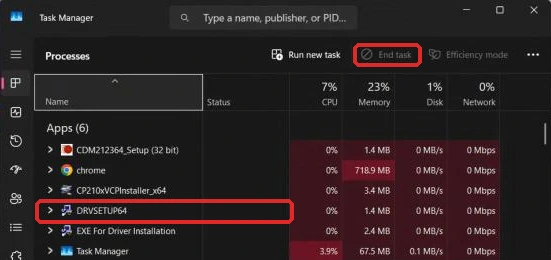
- First, right-click the Start button and choose Task Manager.
- Then find DRVSETUP64 in the list, click it, and click End task.
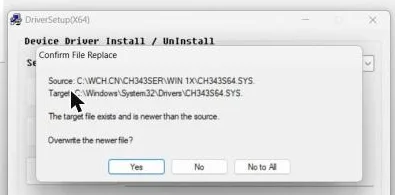
Now the reason this happened is because our laptop already had the CH343 driver files from before, and the boxes said those were newer than the ones being copied. And our GX Pro worked fine afterwards. So if your CH343SER window finishes normally, you can skip those two steps. Either way, Part 6 is how you check: if Device Manager shows the GX Pro's two CH342 lines, the CH343 driver is working.
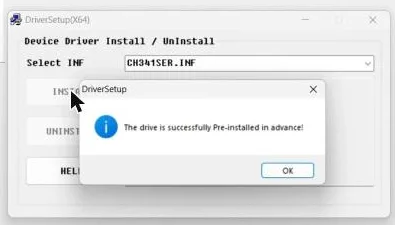
CH341SER
Now the CH341SER window also says "Device Driver Install / UnInstall" at the top, and it shows CH341SER.INF. Click INSTALL. Then a small box says "The drive is successfully Pre-installed in advance!" Click OK.
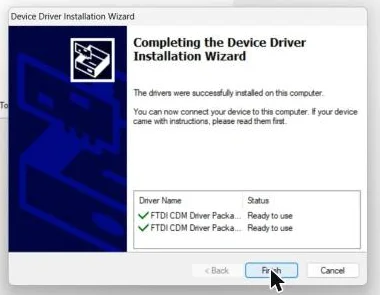
FTDI CDM drivers
And then the FTDI window is titled "FTDI CDM Drivers." Click Extract, then Next, choose "I accept this agreement," and click Next. At the end, both FTDI packages say "Ready to use." Click Finish. Now your FTDI driver's version number may be newer than the one in Spooky2's guide, and that's fine.
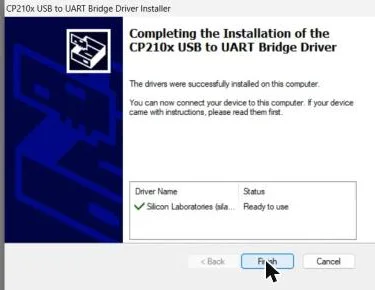
CP210x USB to UART Bridge Driver
So the CP210x driver is from Silicon Labs, and it's for Spooky2's older XM generator. Spooky2's guide says you can skip the CP210x driver. We installed it anyway, and it caused no problems on our laptop. So click Next, choose "I accept this agreement," and click Next. The last screen says "Ready to use." Click Finish.
Also, something to note is that the FTDI and CP210x windows each have their own license agreement for the driver, from the companies that make those chips. Those are separate from Spooky2's license.
Part 6
Connect the GX Pro to the laptop
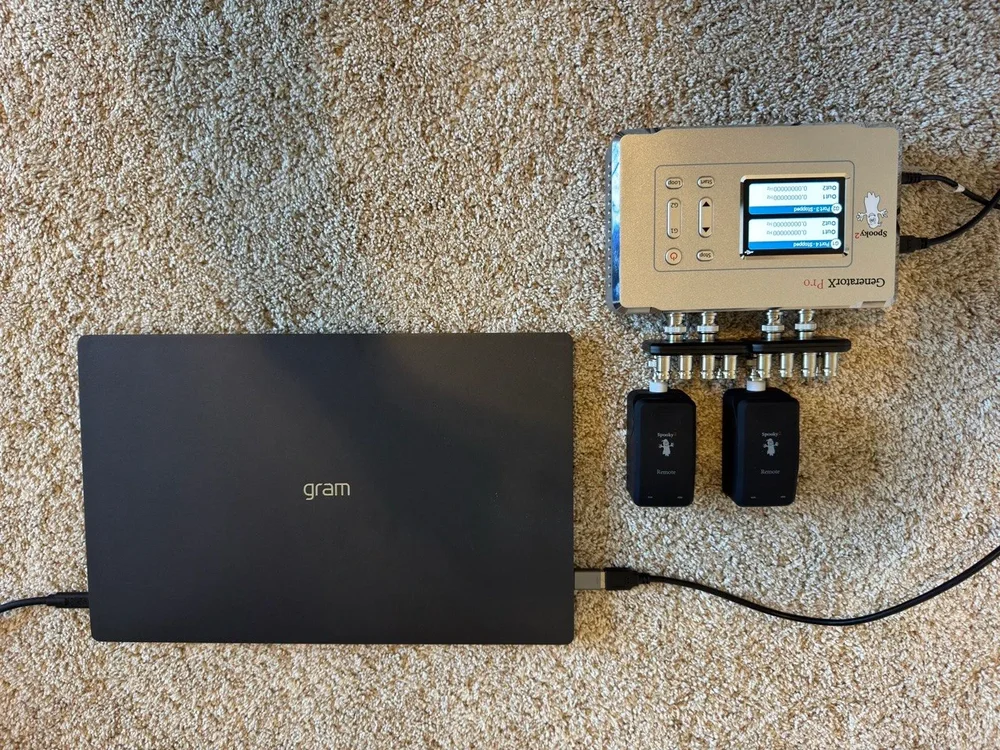
- Plug the GX Pro's 12V power adapter into the GX Pro and into the wall. Now keep in mind, the USB cable doesn't power the GX Pro.
- Short press the Power button on the GX Pro and wait for its screen to light up. And Spooky2's help center says to turn the GX Pro on before you plug in the USB cable.
- Take the USB cable from the GX Pro's box. Plug one end into the GX Pro and the other straight into a USB port on the laptop. You'll want to skip any USB hub, and use a different port from the charger.
- So the laptop end of the cable is usually the flat rectangular plug (USB-A). But if your laptop only has the small oval USB-C ports, you'll need a cheap USB-A to USB-C adapter.
- And you'll want to use the cable from the box, because some USB cables only carry power and can't carry data.
- Look at the top right corner of the GX Pro's screen for a small USB symbol. Red means the laptop sees the GX Pro but Spooky2 doesn't yet, and white means everything is connected.
- Check that Windows sees the GX Pro. So right-click the Start button, choose Device Manager, and click the arrow beside Ports (COM & LPT). Ours showed two lines, USB-Enhanced-SERIAL-A CH342 (COM3) and USB-Enhanced-SERIAL-B CH342 (COM4). Now the reason there are two is because the GX Pro is two generators in one box. And keep in mind your COM numbers could be different, and an older GX Pro may show FTDI "USB Serial Port" lines instead.
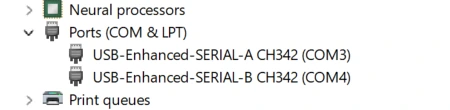
Now if nothing appears under Ports, or you see a yellow warning mark, try a different USB port. And check that you're using the cable from the box.
Part 7
Open Spooky2 and check it found the GX Pro
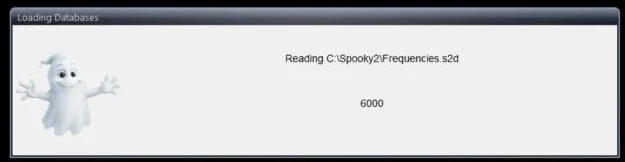
- Double-click the Spooky2 icon on the desktop. If Spooky2 asks about drivers again, click No, because we already installed the drivers earlier. Now Spooky2 will show "Loading Databases" while it reads files like Frequencies.s2d and DNA_Frequencies_NH.s2d, and then "Loading Encyclopedia." That took about 1 minute.
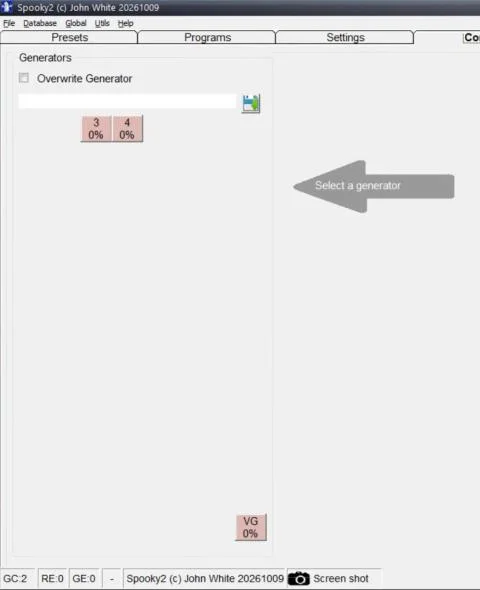
- Look at the bottom left corner of Spooky2 for "GC:2." So GC basically stands for generator count, and GC:2 means Spooky2 found both of the GX Pro's generators. And the Control tab shows one box per generator, each labeled with its port number. Ours were boxes 3 and 4. Now if the corner shows GC:0 or GC:1, you'll want to go back to Part 6 and check that the GX Pro is on and its USB cable is connected.
Part 8
Wire up the Remote, through a Boost
- So something to keep in mind here is that the GX Pro is two generators in one box, Generator 1 (G1) and Generator 2 (G2). And each one has two outputs, Out 1 and Out 2.
- Take one Boost. You'll notice the Boost has two cables that go to the GX Pro. You'll want to plug them into Out 1 and Out 2 of the same generator, and this guide uses Generator 1.
- And finally, plug the Remote's cable into the Boost's port labeled BN.
Part 9
Make your sample and put it in the Remote
So for your sample, Spooky2 recommends fingernail clippings, and the reason is they last for years in a Remote.
- Lay down a clean paper towel first. And you don't need to sterilize anything.
- Peel one of the small stickers from the kit and lay it on the paper towel, sticky side up.
- Put a couple of fingernail clippings on the sticky side, cover them with a second sticker, and write your name on it.
- Open the Remote, put the sticker inside, and close it. Be careful not to fold or crush the sample.
Part 10
Find out which port number is Generator 1
So Spooky2 doesn't label the generators "G1" and "G2" on the Control tab. Instead, the Control tab shows the generators by port number. And the port numbers depend on your laptop.
- Look at the GX Pro's screen. It shows the port number for G1 and for G2.
- Write both port numbers down.
Part 11
Load the Schumann Resonator preset and start it
So the Schumann Resonator is Spooky2's own gentle starting preset, and it's the first program to run.
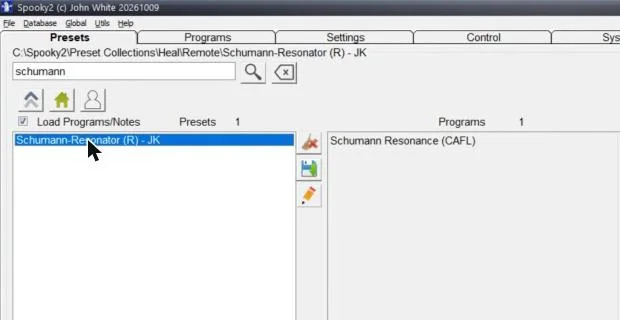
- Click the Presets tab. Now type Schumann into the search box at the top, and click Schumann-Resonator (R) - JK so it's highlighted. You can also find it through the folders if you prefer. Just clear the search box, double-click ">Heal", then ">Remote", and click the preset. Something to note is that the search box searches preset names, not folder names. So typing "Heal" there won't show a Remote folder.
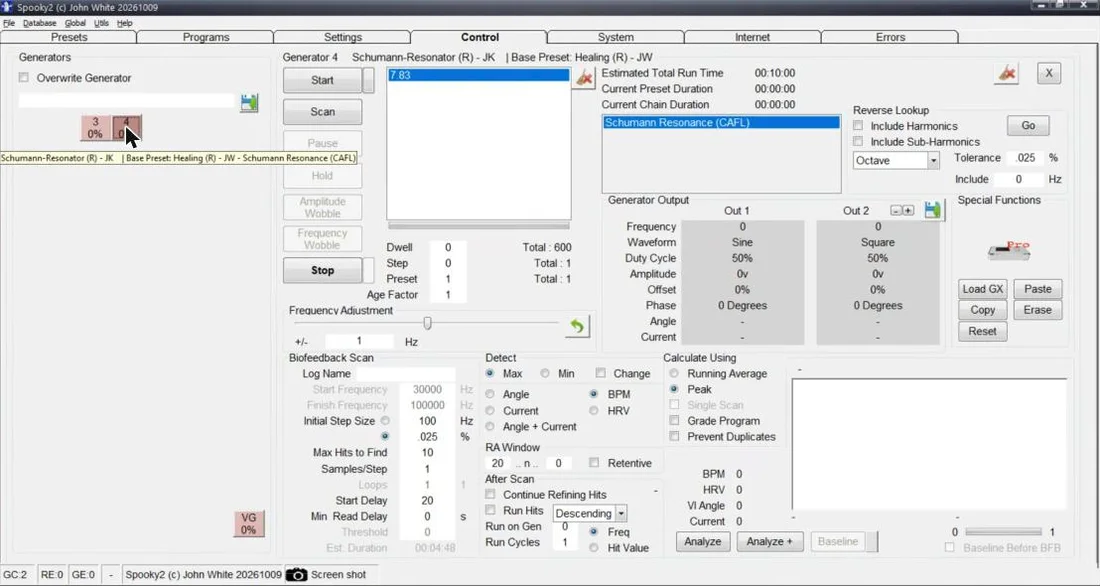
- Click the Control tab. Tick Overwrite Generator first, then click the box with Generator 1's port number from Part 10. We clicked box 4, because the GX Pro's screen showed G1 Port 4.
- The preset loads. You'll see 7.83 (the Schumann frequency), the program name "Schumann Resonance (CAFL)", and settings like dwell, step and preset. You can leave all of those as they are.
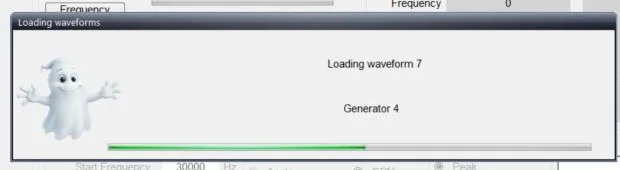
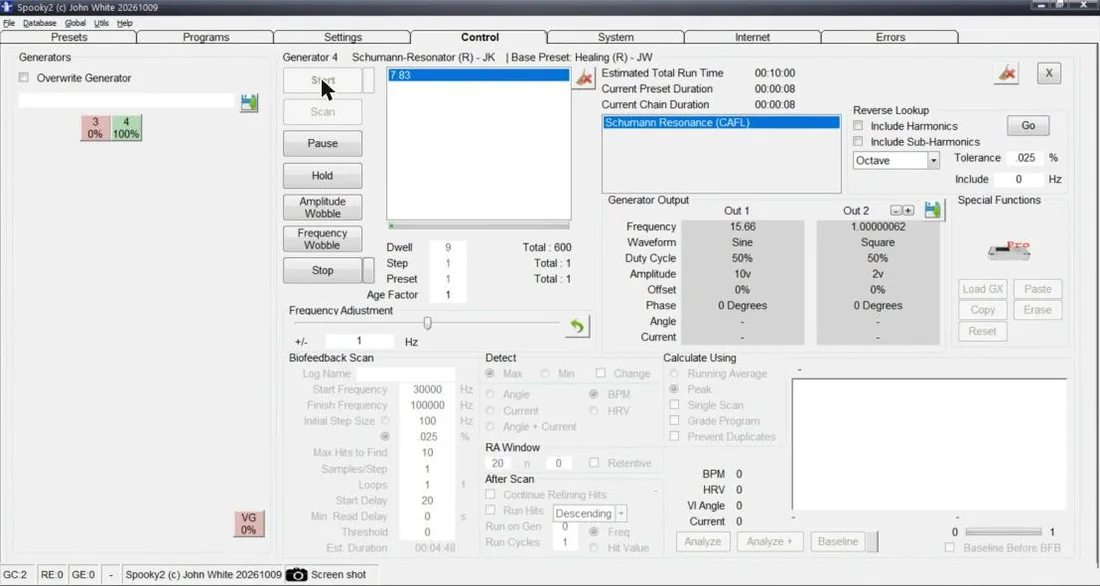
- Click Start, which is the top button. Spooky2 shows "Loading waveforms" for about 10 seconds, then the box turns green, and the lights on the Remote come on. The GX Pro's screen shows the preset name and the frequencies as they run.
Part 12
Make sure the program keeps running
Now in Spooky2, Repeat Sequence 0 means "repeat forever until I press Stop." So keep in mind, it doesn't mean "run zero times." Spooky2's 2024 software guide says that with a 0 there, the program repeats until you stop it. Basically, the 10 minutes is one pass, and the program starts over automatically.
It's best to leave Repeat Sequence at 0. Because if you put a number there, the program stops after that many passes. So for example, 100 passes of a 10-minute program ends after about 17 hours. And we got Repeat Sequence wrong on the first try.
So to keep the program running, you'll want to keep the laptop on and plugged in with sleep set to Never. It also helps to turn off Wi-Fi once everything is installed. Now the reason you want to do this is so Windows can't restart the laptop for an update in the middle of a program.
Part 13
Your first week or two
- So Spooky2's own gentle starting plan runs the Schumann Resonator for one to two weeks, and then it moves to Detox Maintenance.
- And you can leave the rest of the kit in the box during that time, so the Schumann Resonator preset is the only new thing you're trying.
- You'll want to write down how you sleep and how you feel each day.
- Now Spooky2's first rule is to listen to your body. So if you feel off, click Stop and take a break.
If you'd like to know what the Schumann Resonator is and why it comes first, our GX Pro setup guide explains it. And once the Schumann Resonator is going well and you're ready for the next program, I walk through what I'd run next in After the Schumann Resonator: the next program for sensitive users.
My take
Turn the screensaver off before you start. Now the reason you want to do this is because the 25-minute file copy is long enough for the lock screen to come on.
Tick Overwrite Generator before you click the generator's box. Because without the tick, the box stays empty and Start stays grey.
So if you have any questions, feel free to email me at contact@biofrequencybuddy.com. I look forward to reading as many messages as I can, and your questions help me improve these guides.